Click here for Site Map


Farr-Out Word '97 
Tutorial


SEARCH ENGINE AND DIRECTORY LINKS
°Ask Jeeves 
°Awesome Library 
°Bess 
°Dogpile 
°Inference 
°SIRS Web Guide 
°Study Web 
°Yahoo 
°More Links 
 TEACHER 
RECOMMENDED SITES 
°Art 
°Business 
°English 
°Foreign Language 
°Guidance 
°Health 
°Library 
°Math 
°Music 
°Phys. Ed. 
°Resource Room 
°Science 
°Social Studies 
°Technology 
 SITES FOR FACULTY AND STAFF 
°Educational Resource Links 
°General Education Sites 
°Professional Development Links 


CLICK ANY TOPIC FOR DIRECT ACCESS
 
 
Setting Margins
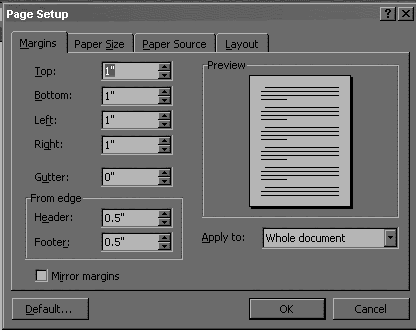
Choose Page Setup... from the File option on the Menu Toolbar (you will see a dialog box like the one below).  You can set the margins by clicking in each box and using the up and down arrows.  TIP:  use TAB to go from one field to the next.  Usually, you will not need to change the Gutter, Header, or Footer settings. Click OK or press ENTER when you are done. 
 
 
Line Spacing
Choose Paragraph... from the Format option on the Menu Toolbar (you will see a dialog box like the one below). Press the down arrow under the Line spacing: section and choose the spacing requested by your teacher (usually Double).  Click OK or press ENTER when you are done.  TIP: you can also set up spacing for a document by using the short-cut keys: CTRL + 2 for double-spacing or CTRL + 1 for single-spacing.
Setting the Default Font Size and Style
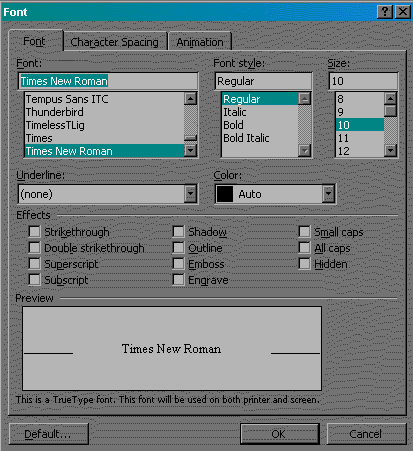
Choose Font... from the Format option on the Menu toolbar (you will see a dialog box like the one below).  Choose the Font, Font style, Size, etc. that your teacher has assigned.  After choosing the various options click on the Default... button found in the lower left-hand corner of the Font dialog box to set the default font  A pop-up box will appear that asks "Do you want to change the default font...."  Click the YES button to complete the task. 


Creating a Header/Footer
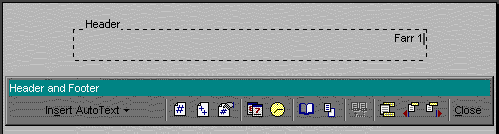
Choose Header and Footer from the View option on the Menu Toolbar (you will see a new toolbar and dotted box like the one pictured below).  Set your alignment by using the formatting toolbar or by using Ctrl + E to center, Ctrl + R to right-justify, or Ctrl + L to left-justify.  Right-justification was used in the sample below.  To assure that your page number automatically numbers on each page you will click on the  button found on the Header and Footer toolbar.  Explore the other options on the toolbar (especially the  that allows you switch between headers and footers) before clicking the Close button found on that toolbar to return to your document. 
 
Home Disk Links to Learning Home Page
Links to Learning Home Page
E-Mail Webmaster Jenny Farr